GridTracker Program Files
Windows
In a nutshell, for Windows users who have done the default program installation your GridTracker program files are stored in
C:/Program Files (x86)/GridTracker
or
C:/Program Files/GridTracker
depending on if it’s a 32 or 64 bit Windows installation.
MacOS
GridTracker runs usually from the Applications directory (assuming it was dragged there when installed).
Linux
This will depend a little on if you used an RPM on a Red Hat based sytem, or where you placed the de-compressed GridTracker tar.gz package in your file system.
On RedHat based systems (RedHat, CentOS, Scientific Linux, Fedora) that used the RPM package. GridTracker’s system directory lives at
/usr/share/gridtracker/
On any other system you have the option to copy the decompressed tar.gz package to /usr/share/gridtracker and the gridtracker.desktop file into the appropriate directory for it to show up in your systems Application launcher menu. Alternatively you can just decompress the tar.gz into your choice of directory and execute the GridTracker executable from there. This makes for easy use of running GridTracker off removable storage such as a flashdrive.
GridTracker Data Files
The user media directory
Regardless of which Operating System is used, if you choose to add additional media files to use for alerts within GridTracker, there is a nifty place you can put them without having to dive deep into the guts of your file system. If you look in the data directory where your GridTracker_QSO.adif file is, you’ll see a folder named media. Place your media files in there and restart GridTracker. On startup, GridTracker scans that directory for files and adds them to it’s list of available media for alerts.
Windows
If you have done a default installation of GridTracker and you DO NOT have OneDrive, your data files are stored at
C:/Users/%user%/Documents/GridTracker/
If you have done a default installation of GridTracker and you have OneDrive your data files are stored at
C:/Users/%user%/OneDrive/Documents/GridTracker/
Files stored in OneDrive are continually backed up but only one version is saved. If you choose to delete a file from One Drive you will get a warning message asking if you’re sure you want to take that step because once a file is deleted it is gone forever.
If you would like to maintain a local backup for either your GridTracker logbook file (GridTracker_QSO.adif) or your WSJT-X log (wsjtx_log.adi) files you will have to do it by hand.. There’s no provision in either program to create a backup. What you can do, though, is use GridTracker’s logging function (Settings>Logging) to automatically send info on new QSOs to one of eleven different applications that are dedicated logging sites.
Being Fooled into Thinking You’ve Deleted a File
A Special Note for Windows Users:
You can think that you have deleted your GridTracker_QSO.adif file because of the peculiarities of how Windows file directory windows operate. You [probably] haven’t.
Let’s say you’ve clicked the Clear Log button in the main GridTracker control panel to clear out GridTracker’s working database. You next decide to load back in the GridTracker_QSO.adif file by clicking the ADIF button. Windows will show you a directory window from which you can select the file.
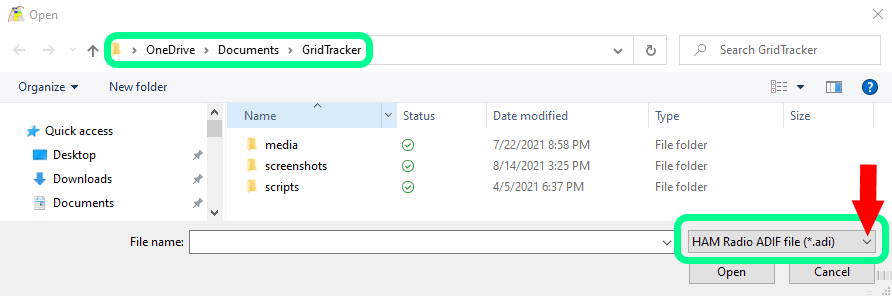
Note: the directory window is (by default) showing you only the files with an .adi file extension. Since the extension for the the GridTracker_QSO.adif file is different it’s not listed.
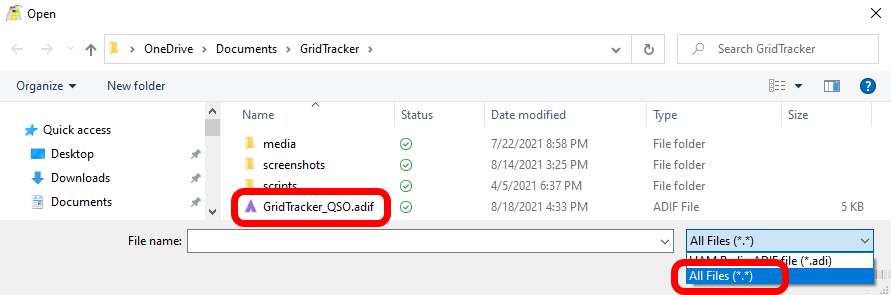
To find it just click on the down arrow ˅ (see red arrow above) to have All Files (*.*) displayed and there’s the GridTracker_QSO.adif file safe and sound.
MacOS
User files on MacOS are stored in
~/Documents/GridTracker/
Linux
If you are using Linux, data files are saved at
/home/$USER/Documents/GridTracker/
