Windows
Download the latest version from https://gridtracker.org/downloads/ being sure to use the file link under Windows. Save the file to your Downloads directory and then double click on
GridTracker-Installer.<verion>.exeto start the installation process.
You may be prompted with a “User Access Control” dialog. If so, click the Yes button to continue.

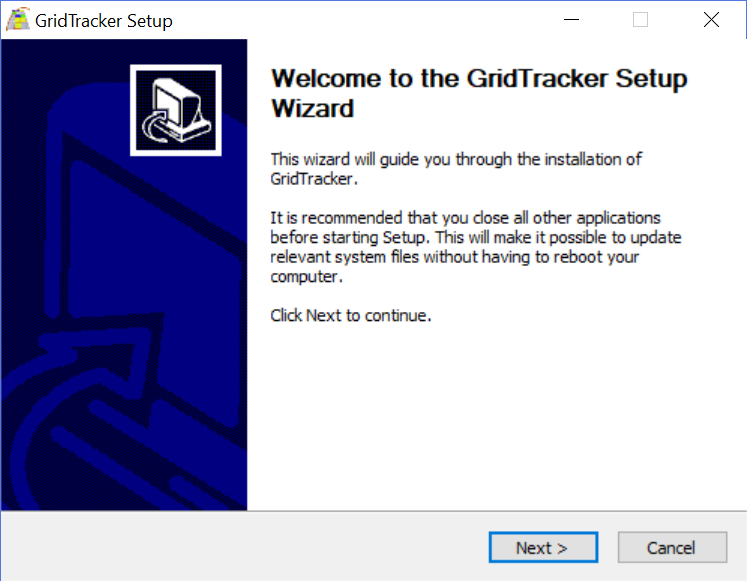
Click Next to continue.
GridTracker will present the default installation location. It is recommended that you use this, but you may select path if desired, but clicking the Browse… button.
Click Install to continue.

When the installation finishes click Next to continue.

The installation is now complete. Click Finish to close the installer and launch GridTracker for the first time.
You may uncheck “Launch GridTracker now” if you do not want to launch it after clicking the Finish button.

Proceed to the Configuring WSJT-X and JTDX for GridTracker section for next steps.
MacOS
Download the latest version from https://gridtracker.org/downloads/
Open a Finder window and navigate to the place that the download is in; likely the Downloads directory. It may need to be unzipped (double click the zip file) or your browser may have already done that for you.
Once you have the GridTracker.app, drag it to your Applications folder:

Next you need to open the Applications folder, Command-Click GridTracker, then Click Open.
MacOS will present a security warning allowing you to decide to override system security settings, click Open. You should not see this warning after this.
Screen grab needed for MAC system security override screen.
And another asking permission for notifications.

You will get two more pop-ups after the program has been running, one to allow incoming network traffic:
And another asking permission for notifications.

You will want to Allow network notifications, and it is up to you if you want to Allow the Notifications.
Proceed to the Configuring WSJT-X and JTDX for GridTracker section for next steps.
Linux Intel/AMD Archs
Redhat based distros
Download the latest version .rpm for your architecture from https://gridtracker.org/downloads/
Install either by running from where you downloaded the .rpm
sudo dnf install ./GridTracker2-2.xxxxxx.x-arch.rpm
where arch is your system architecture (x86_64, aarch64 or armv7l) or by double clicking to launch Discover Software Center.
Proceed to the Configuring WSJT-X and JTDX for GridTracker section for next steps.
Debian based distros
Download the latest version .deb for your architecture from https://gridtracker.org/downloads/
Install using dpkg from where you downloaded the .deb
sudo dpkg -i ./GridTracker2-2.xxxxxx.x-arch.deb
where arch is your system architecture (amd64, arm64, armv7l)
Proceed to the Configuring WSJT-X and JTDX for GridTracker section for next steps.
Arch linux
Need new instructions for .pacman file
Proceed to the Configuring WSJT-X and JTDX for GridTracker section for next steps.
All other Linuxes
(or using the tar.gz packge)
Download the tar.gz package for your architecture from https://gridtracker.org/downloads/, decompress and execute the GridTracker exectuable from the decompressed directory.
$ tar -xf GridTracker-<version>-linux-<arch>.tar.gz
Run the GridTracker executable from the now decompressed package directory.
Need new instructions for .APK and .AppImage
Proceed to the Configuring WSJT-X and JTDX for GridTracker section for next steps.
